
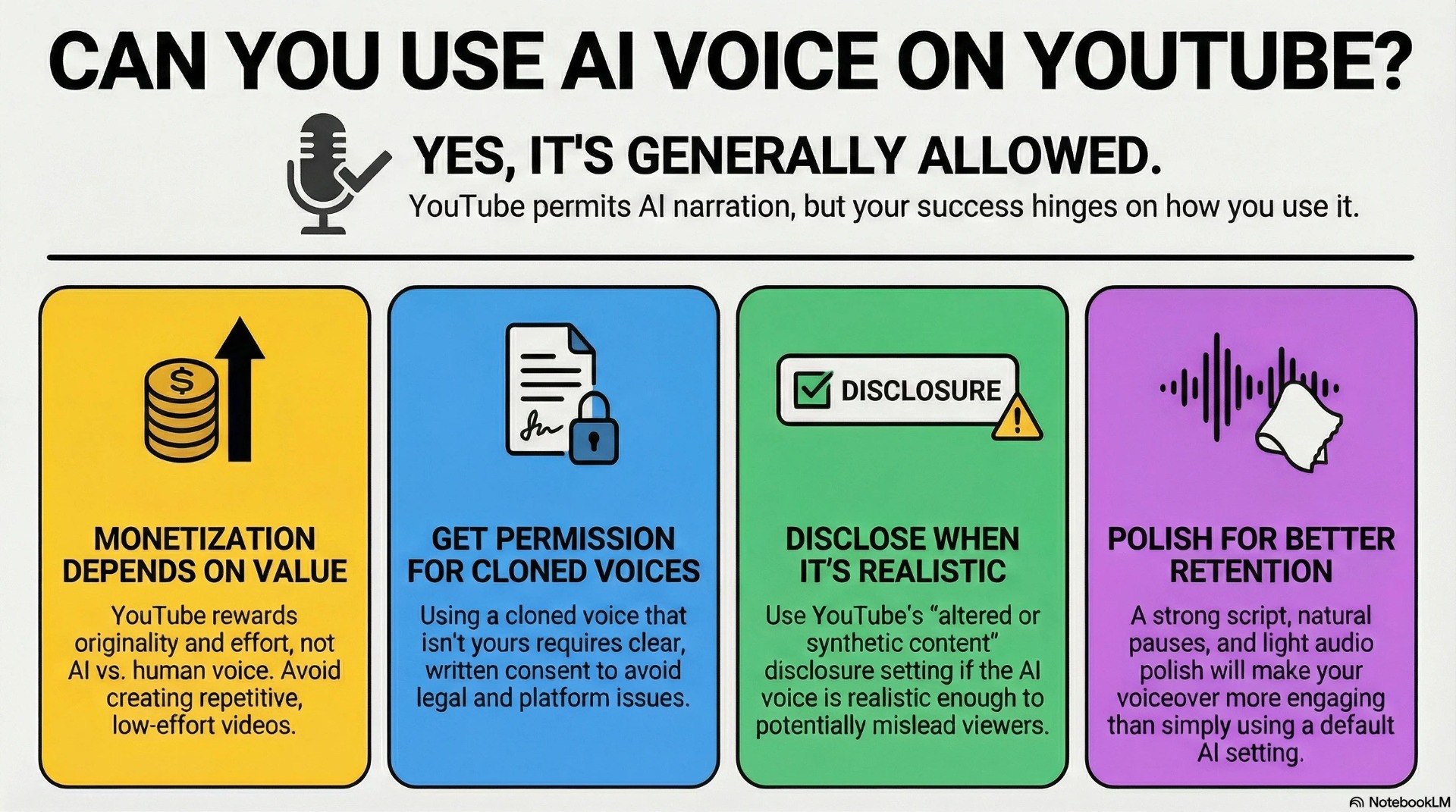
If you’ve ever wanted to start a YouTube channel but felt stuck because you don’t like recording your own voice, you’re not alone. Many creators hesitate due to a lack of confidence, background noise, or simply not having the right equipment.
Here’s the good news: you can now create professional-quality voiceovers using AI—without ever speaking into a microphone.
In this guide, you’ll learn how to create AI voiceovers for YouTube videos step-by-step, even if you’re a complete beginner. We’ll cover the best AI tools for beginners, practical workflows, real-life examples, and tips to make your videos sound natural and engaging.
What You’ll Need
Before we jump into the tutorial, here’s what you’ll need:
Basic Requirements
- A script (you can write it yourself or generate it using AI)
- A computer or smartphone
- Internet connection
AI Tools (Free + Paid Options)
- Text-to-speech tools (for voiceovers)
- Optional: Script writing tools
- Optional: Video editing software
Free Options
- Basic AI voice generators (limited voices)
- Free plans with watermark or usage limits
Paid Options
- More realistic voices
- Multiple accents, emotions, and tones
- Commercial usage rights
Step-by-Step Guide: How to Create AI Voiceovers for YouTube Videos
Step 1: Write or Generate Your Script
Your voiceover is only as good as your script. Start with a clear, engaging script.
Option 1: Write it Yourself
- Keep sentences short and conversational
- Avoid complex words
- Write as you speak
Option 2: Use AI for Script Writing
You can use AI tools to:
- Generate video scripts
- Rewrite content in a conversational tone
- Add hooks and storytelling elements
Pro Tip: Always edit AI-generated scripts to make them sound more human.
Step 2: Choose an AI Voice Generator
Now comes the core step—turning your text into a voice.
When choosing a tool, look for:
- Natural-sounding voices
- Language and accent options
- Ability to control tone and speed
Step 3: Paste Your Script
Once you’ve selected a tool:
- Copy your script
- Paste it into the AI voice generator
- Break it into smaller paragraphs for better pacing
Why this matters: Long blocks of text can sound robotic. Short sections improve flow.
Step 4: Select Voice and Tone
Most AI tools offer:
- Male/female voices
- Different accents (US, UK, Indian, etc.)
- Emotional tones (friendly, serious, energetic)
Tip: Match the voice to your content:
- Educational videos → Calm, clear voice
- Storytelling → Expressive voice
- Tech tutorials → Neutral and professional
Step 5: Adjust Speed and Pauses
To make your AI voice sound more natural:
- Slow down the speech slightly
- Add pauses after sentences
- Emphasise key words (if the tool allows)
Shortcut: Some tools let you add punctuation like “...” to create natural pauses.
Step 6: Generate and Download Audio
Once everything is set:
- Click “Generate”
- Preview the voiceover
- Download the audio file (MP3 or WAV)
Always listen fully before downloading—you might catch small errors.
Step 7: Add Voiceover to Your Video
Use any video editing tool to sync your voiceover:
- Import your audio
- Match it with visuals
- Adjust timing if needed
You can use:
Free editors (CapCut, VN Editor)
Paid editors (Premiere Pro, Final Cut)
Best AI Tools for This Task
Here are some of the best AI tools for creating voiceovers, especially if you're just starting:
1. ElevenLabs
- Ultra-realistic voices
- Emotion control
- Great for storytelling and YouTube automation
2. PlayHT
- Wide voice library
- Multiple languages
- Good for tutorials and explainer videos
3. Murf AI
- Easy-to-use interface
- Built-in editing tools
- Ideal for beginners
4. Speechelo
- One-click voice generation
- Budget-friendly option
- Good for simple projects
Real-Life Example
Let’s say you want to start a YouTube channel about motivational content.
Without AI:
- You need a microphone
- You record multiple takes
- You edit out mistakes
- It takes hours
With AI Voiceovers:
- You write a 2-minute script
- Paste it into an AI tool
- Select a deep motivational voice
- Generate audio in seconds
- Add background music + stock footage
Result:
A professional-looking video ready in under 30 minutes.
Many faceless YouTube channels are already using this method to:
- Post daily content
- Scale faster
- Earn through ads and affiliate links
Tips to Get Better Results
Want your AI voiceovers to sound like real humans? Follow these tips:
1. Write as You Speak
Avoid:
- “Henceforth, we shall discuss…”
Use:
- “Let’s talk about…”
2. Add Natural Pauses
Break sentences like this:
- “Today… we’re going to learn something powerful.”
3. Use Emotion-Based Voices
Choose voices that match:
- Excitement → Energetic tone
- Education → Calm tone
- Story → Dramatic tone
4. Edit Audio Slightly
Even AI audio can improve with:
- Background music
- Noise reduction
- Slight reverb for depth
5. Test Multiple Voices
Don’t settle for the first voice. Try:
- Different accents
- Different speeds
- Different tones
Common Mistakes to Avoid
Using Long, Complex Sentences
AI struggles with complicated structure.
Fix: Keep it simple and clear.
Ignoring Punctuation
No punctuation = robotic voice.
Fix: Add commas, periods, and pauses.
Choosing the Wrong Voice
A mismatch can ruin your video.
Fix: Always preview before finalising.
Not Editing the Script
AI-generated scripts can sound unnatural.
Fix: Add your personal touch.
Overusing AI Without Creativity
AI is a tool, not a replacement for creativity.
Fix: Combine AI with your ideas.
Conclusion
Creating AI voiceovers for YouTube videos has never been easier. With the right tools and a simple workflow, you can produce high-quality content without recording your own voice.
Let’s quickly recap what you learned:
- How to create AI voiceovers step-by-step
- Best AI tools for beginners
- Practical tips to improve voice quality
- Common mistakes to avoid
Whether you’re starting a faceless YouTube channel or just want to save time, AI voiceovers can completely change your content creation game.
Now it’s your turn.
Try this process today—create your first AI voiceover, pair it with visuals, and publish your video. You’ll be surprised how quickly you can go from idea to finished content.



%3A%20How%20to%Use%20&media=https://airesult.ai/logos/ai-voiceovers-for-youtube.jpeg)