Video editing used to be one of the most time-consuming parts of content creation. Cutting clips, adding transitions, syncing audio—it could easily take hours, even for a short video.
But now, AI has changed everything.
Today, you can edit videos automatically with AI in just minutes. Whether you're a YouTuber, content creator, or small business owner, AI tools can handle most of the heavy lifting for you.
In this guide, you’ll learn how to edit videos automatically with AI, step by step—even if you’ve never edited a video before.
Why Use AI for Video Editing?
Let’s be honest—traditional video editing can be overwhelming.
AI simplifies the process by:
- Automatically cutting unwanted parts
- Adding captions and subtitles
- Suggesting transitions and effects
- Enhancing audio and video quality
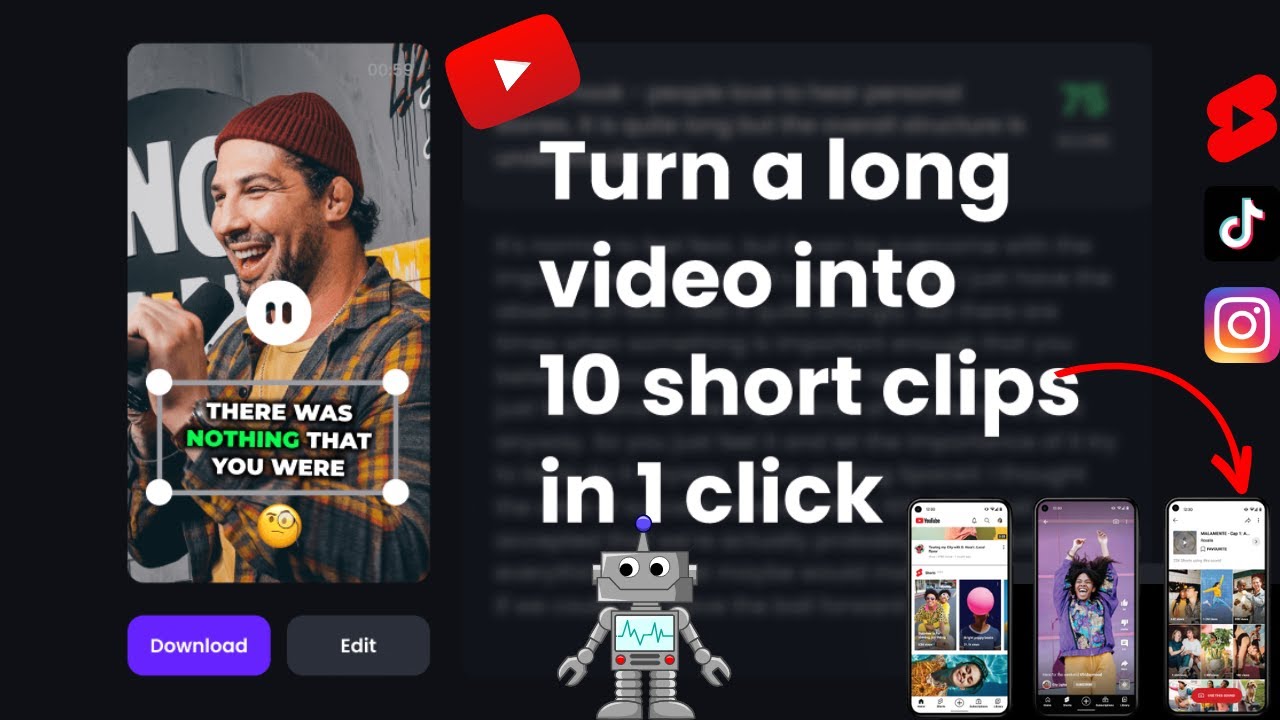
- Turning long videos into short clips
This means you save time while still getting professional results.
What You’ll Need
Before we start, here’s what you need:
- A raw video (recorded on a phone or a camera)
- An AI video editing tool
- Basic idea of your final output (YouTube, Instagram, etc.)
- Internet connection
That’s it. No advanced editing skills required.
Step-by-Step: How to Edit Videos Automatically with AI
Let’s break it down into simple steps you can follow right away.
Step 1: Choose an AI Video Editing Tool
Start by picking a tool that offers automation features.
Look for tools that can:
- Auto-cut silence and mistakes
- Add subtitles automatically
- Generate short clips
- Apply transitions and effects
Choose a beginner-friendly tool so you don’t get overwhelmed.
Step 2: Upload Your Video
Once you open the tool:
- Click on “Upload”
- Select your video file
- Wait for it to process
Most AI tools will start analysing your video automatically once it is uploaded.
Step 3: Let AI Analyse and Edit
This is where the magic happens.
The AI will:
- Detect pauses and remove silence
- Cut filler words like “um” and “uh”
- Identify important moments
- Suggest edits
In just a few minutes, your rough video turns into a cleaner version.
Step 4: Add Auto Captions
Captions are essential, especially for social media.
AI tools can:
- Generate subtitles instantly
- Sync them perfectly with speech
- Offer different font styles
This not only improves accessibility but also boosts engagement.
Step 5: Apply Templates or Styles
Many AI editors offer ready-made templates.
You can:
- Choose a style (YouTube, reels, ads)
- Apply transitions automatically
- Add background music
This helps your video look polished without manual effort.
Step 6: Create Short Clips (Optional)
If you’re working with long videos:
- Use AI to extract highlights
- Turn them into short-form content
- Optimise for platforms like Instagram or Shorts
This is perfect for repurposing content quickly.
Step 7: Preview and Export
Before finalising:
- Watch the edited video
- Make small adjustments if needed
- Export in your preferred resolution
Most tools offer HD export options suitable for all platforms.
Best AI Tools for Automatic Video Editing
Here are some popular tools you can try:
1. Pictory AI
- Converts long videos into short clips
- Auto captions and summaries
- Great for content creators
2. Runway ML
- Advanced AI editing features
- Background removal and effects
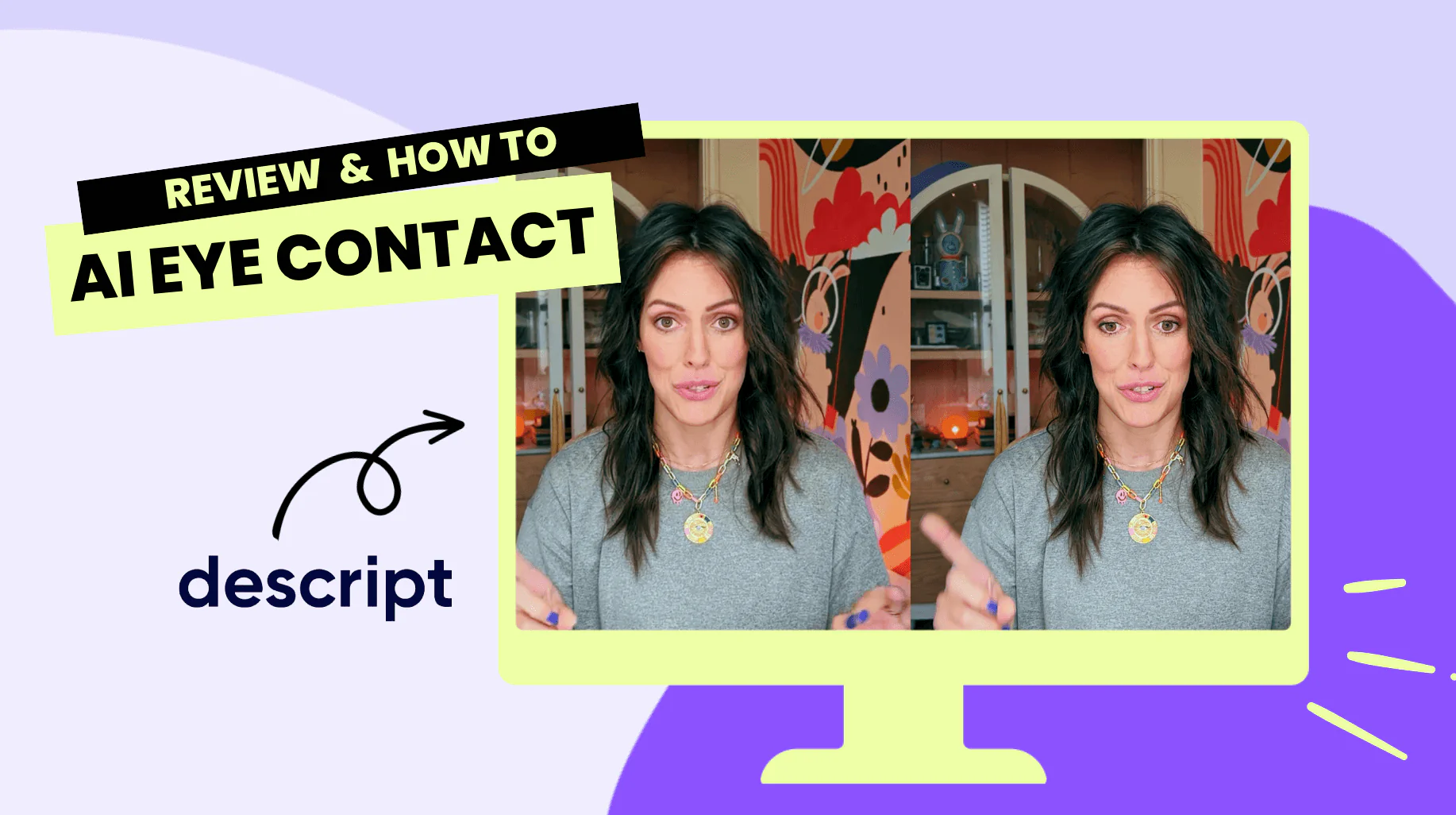
3. Descript
- Edit video by editing text
- Removes filler words automatically
4. Wisecut
- Auto cuts silence
- Adds background music intelligently
Each tool offers unique features, so explore what fits your workflow best.
Real-Life Example
Let’s say you recorded a 10-minute talking video for YouTube.
Here’s how AI helps:
- Upload the video
- AI removes pauses and mistakes
- Captions are added automatically
- Highlights are turned into 3 short clips
Within 10–15 minutes, you have:
- A polished main video
- Multiple short clips for social media
All without manual editing.
Tips to Get Better Results
Want your videos to look even better? Follow these tips:
- Speak clearly while recording
- Use good lighting and audio
- Keep your content structured
- Choose templates that match your brand
- Always review AI edits before exporting
AI is powerful, but a quick human touch makes it perfect.
Common Mistakes to Avoid
Here are some beginner mistakes to watch out for:
Relying Fully on AI
Always review and tweak the final output.
Poor Quality Input
Bad audio or lighting affects AI results.
Overusing Effects
Too many transitions can look unprofessional.
Ignoring Captions
Captions boost engagement—don’t skip them.
Final Thoughts
AI has made video editing faster, easier, and more accessible than ever. What used to take hours can now be done in minutes.
The key is to:
- Choose the right tool
- Let AI handle repetitive tasks
- Add your personal touch at the end
If you’re serious about content creation, learning how to edit videos automatically with AI can save you time and boost your productivity.



%3A%20How%20to%Use%20&media=https://airesult.ai/logos/edit-videos-automatically.jpeg)