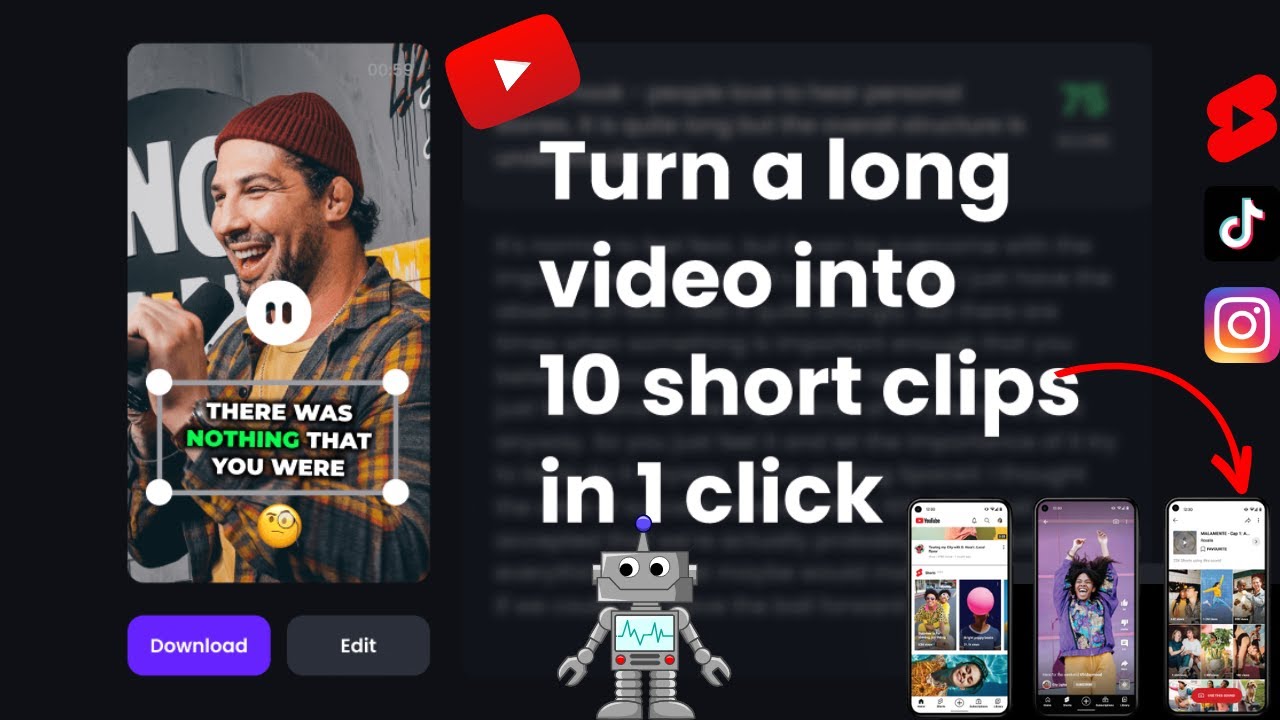
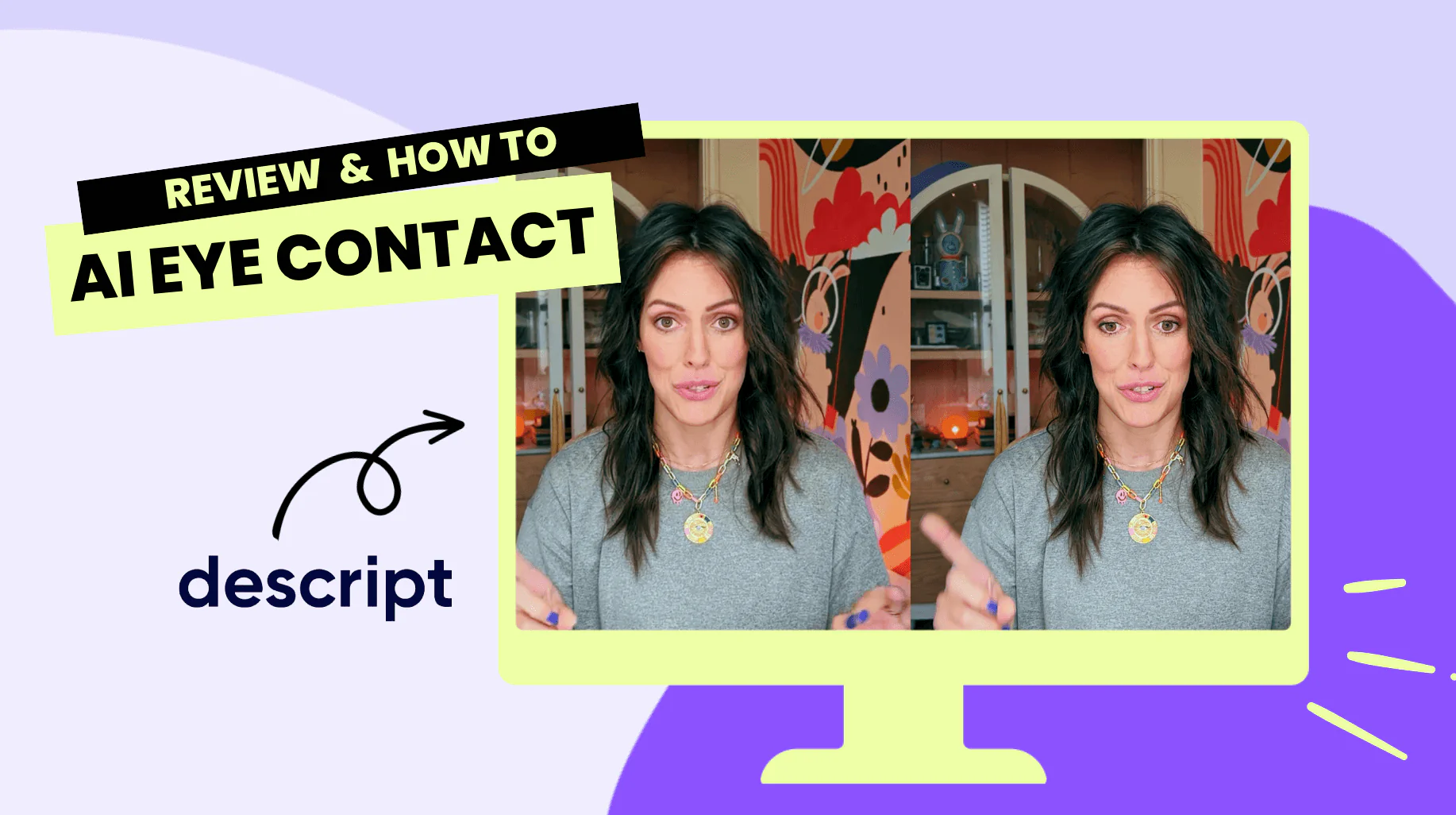
Creating eye-catching YouTube thumbnails used to require design skills, expensive software, and a lot of time. But today, thanks to AI tools, anyone—even beginners—can design professional thumbnails in minutes.
If you’ve ever struggled to get clicks on your videos, your thumbnail might be the reason. A great thumbnail can significantly improve your click-through rate and help your content stand out.
In this guide, you’ll learn how to create YouTube thumbnails with AI, step by step—even if you’ve never designed anything before.
Why Thumbnails Matter More Than You Think
Before we dive into the tutorial, let’s quickly understand why thumbnails are so important.
Your thumbnail is the first impression of your video. It works like a mini-advertisement. Even if your content is amazing, a dull thumbnail can stop people from clicking.
A good thumbnail:
- Grabs attention instantly
- Communicates the video’s value
- Builds curiosity
- Increases clicks and views
And now, AI makes this process faster and easier than ever.
What You’ll Need
To get started, you don’t need much. Just a few simple tools:
- An AI design tool (like Canva, Adobe Express, or similar)
- A title or idea for your video
- Optional: Your photo or branding elements
Most AI tools offer free plans, so you can start without spending money.
Step-by-Step: How to Create YouTube Thumbnails with AI
Let’s break it down into simple steps.
Step 1: Choose an AI Thumbnail Tool
Start by selecting a tool that offers AI-powered design features.
Look for features like:
- Pre-made thumbnail templates
- AI text suggestions
- Background remover
- Drag-and-drop editor
If you’re a beginner, choose a tool that feels simple and intuitive.
Step 2: Select a Thumbnail Template
Once you open the tool:
- Search for “YouTube Thumbnail”
- Browse through the available templates
- Pick one that matches your video topic
For example:
- Bright and bold designs for entertainment videos
- Clean and minimal styles for tutorials
- Dramatic layouts for storytelling content
Templates save time and give you a strong starting point.
Step 3: Add Your Text (Use AI Suggestions)
Now it’s time to add text to your thumbnail.
Keep it:
- Short (3–6 words max)
- Bold and readable
- Emotion-driven
Example:
- “Make Thumbnails FAST”
- “AI Changed Everything!”
- “Don’t Make This Mistake”
Many AI tools can suggest text ideas based on your topic. Use them for inspiration, but tweak them to sound natural.
Step 4: Upload or Generate Images
You can either:
- Upload your own photo
- Use stock images
- Generate images using AI
If you’re using your face:
- Choose a clear, expressive image
- Use emotions (surprise, excitement, curiosity)
AI background remover tools can instantly cut your image and make it look professional.
Step 5: Customize Colors and Fonts
This is where your thumbnail comes to life.
Tips:
- Use high-contrast colors (yellow + black, white + red)
- Stick to 1–2 fonts
- Make sure text is readable on mobile
AI tools often suggest colour combinations automatically—use them to save time.
Step 6: Add Visual Elements
Enhance your thumbnail with:
- Arrows
- Circles
- Emojis
- Highlights
These elements guide the viewer’s eyes and make your thumbnail more engaging.
Step 7: Preview and Download
Before finalising:
- Zoom out and check readability
- View it on a mobile size
- Make sure nothing looks cluttered
Once satisfied, download your thumbnail in high quality (usually PNG or JPG).
Best AI Tools for Creating Thumbnails
Here are some popular tools you can try:
1. Canva
- Beginner-friendly
- Tons of templates
- AI text and design suggestions
2. Adobe Express
- Clean interface
- Quick editing tools
- Great for fast designs
3. Fotor AI
- AI image generation
- One-click enhancements
4. Snappa
- Simple and fast
- Focused on social media graphics
Each tool has its strengths, so try a couple and see what works best for you.
Real-Life Example
Let’s say you’re creating a video titled:
“How I Grew My YouTube Channel Fast”
Here’s how your thumbnail could look:
- Big text: “Grew FAST!”
- Your surprised face on one side
- A graph or arrow going up
- Bright background (yellow or red)
Using AI tools, this entire thumbnail can be created in under 10 minutes.
Tips to Get Better Results
Want your thumbnails to stand out even more? Follow these tips:
- Focus on one clear message
- Use faces with emotions
- Avoid too much text
- Study popular YouTubers in your niche
- Keep your style consistent
Consistency helps build your brand over time.
Common Mistakes to Avoid
Even with AI, beginners often make these mistakes:
Too Much Text
Keep it short and impactful.
Low Contrast
If text blends with the background, it won’t be readable.
Cluttered Design
Too many elements can confuse viewers.
Ignoring Mobile Users
Most people watch YouTube on phones—design accordingly.
Final Thoughts
Creating YouTube thumbnails no longer requires advanced design skills. With AI tools, you can design professional, click-worthy thumbnails in just minutes.
The key is to:
- Keep it simple
- Focus on clarity
- Use AI as a helper, not a replacement for creativity
Start experimenting today, and you’ll quickly see the difference in your video performance.



%3A%20How%20to%Use%20&media=https://airesult.ai/logos/youtube-thumbnails-with-ai.png)