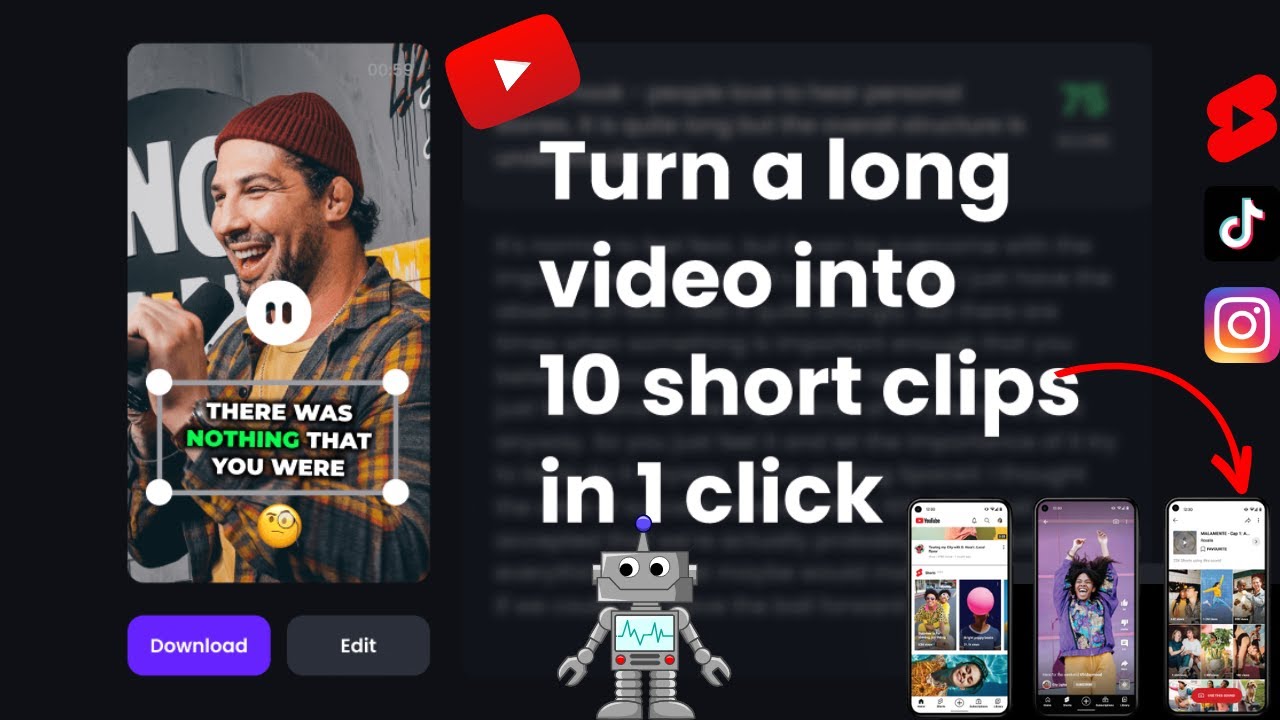
If you’ve been scrolling through YouTube Shorts or Instagram Reels lately, you’ve probably noticed something interesting—channels posting videos daily without ever showing a face. No camera, no studio, no expensive setup… yet they’re getting thousands (sometimes millions) of views.
Sounds unreal? It’s not.
Thanks to modern AI tools for beginners, creating high-quality, faceless videos has become easier than ever. Whether you want to build a side hustle, grow a YouTube channel, or just experiment with content creation, AI can handle most of the heavy lifting.
In this step-by-step guide, you’ll learn exactly how to create faceless AI videos from scratch—even if you have zero editing experience. We’ll cover tools, workflow, real-life examples, and practical tips you can start using today.
What You’ll Need
Before we jump into the process, here are the basic tools and requirements:
Essential Tools
- Script generator (AI writing tool)
- Text-to-speech (AI voice generator)
- Video editor (AI-powered or simple editor)
- Stock footage or AI-generated visuals
Free & Paid Options
- Free tools: ChatGPT (free version), CapCut, Canva, Pexels
- Paid tools (optional): ElevenLabs, Pictory, InVideo AI
Don’t worry—you can create your first video using only free tools.
How to Create Faceless AI Videos
Let’s break the process down into simple, actionable steps.
Step 1: Choose a Niche (Very Important)
Before creating anything, decide what type of content you want to make.
Popular faceless video niches include:
- Motivation & quotes
- Facts & educational content
- Tech tutorials
- Finance tips
- Storytelling (horror, life stories)
Pro Tip: Pick a niche you enjoy. Consistency becomes much easier.
Step 2: Generate a Script Using AI
This is where AI saves you the most time.
You can use tools like ChatGPT to create scripts in seconds.
Example Prompt:
| “Write a 60-second YouTube Shorts script on ‘5 daily habits that improve productivity’ in a friendly tone.” |
What to Focus On:
- Keep sentences short
- Hook the viewer in the first 3 seconds
- Use simple language
Shortcut Tip: Ask AI to format the script with timestamps or scene suggestions.
Step 3: Convert Script to Voice (Text-to-Speech)
Now you need a voiceover.
Use AI voice generators to turn your script into natural-sounding audio.
Options:
- Free: CapCut text-to-speech
- Premium: ElevenLabs (more realistic voices)
Tips:
- Choose a clear, human-like voice
- Adjust speed slightly (1.05x works well)
- Avoid robotic tones
This step is crucial—good audio = higher retention.
Step 4: Add Visuals (Stock or AI Generated)
Now it’s time to bring your video to life.
You can use:
- Stock footage (Pexels, Pixabay)
- AI-generated images/videos
- Simple animations
What Works Best:
- Fast cuts (every 2–4 seconds)
- Relevant visuals matching each line
- Subtitles for engagement
Example:
| If your script says “Wake up early,” show a sunrise or alarm clock clip. |
Step 5: Edit the Video (Beginner-Friendly)
Use a simple editor like CapCut or Canva.
Basic Editing Steps:
- Import voiceover
- Add visuals to match audio
- Insert subtitles (very important!)
- Add background music (low volume)
Editing Tips:
- Use zoom effects to avoid static visuals
- Keep video length under 60 seconds for Shorts/Reels
- Use bold captions to highlight key points
Step 6: Add Captions & Hooks
Most viewers watch videos without sound—captions are essential.
Caption Tips:
- Use big, readable fonts
- Highlight keywords
- Sync with audio
Hook Examples:
- “You’re wasting your time if you do this…”
- “This one habit changed my life…”
A strong hook can double your views.
Step 7: Export & Upload
Export your video in:
- 1080x1920 (vertical format)
- High quality (at least 1080p)
Upload to:
- YouTube Shorts
- Instagram Reels
- TikTok
SEO Tips:
- Use keywords in title & description
- Add hashtags (#AIvideos #facelesscontent)
- Keep titles curiosity-driven
Best AI Tools for This Task
Here are some of the best AI tools for beginners to create faceless videos:
1. ChatGPT
- Best for script writing
- Saves hours of brainstorming
- Easy to use
2. CapCut
- Free video editor
- Built-in text-to-speech
- Perfect for beginners
3. Canva
- Great for simple animations
- Drag-and-drop interface
- Ideal for social media videos
4. Pictory / InVideo AI
- Converts scripts into videos automatically
- Adds visuals and voiceovers
- Great for fast content creation
Real-Life Example
Let’s say you want to create a video on:
“5 Morning Habits for Success”
Workflow:
1. Generate a script using AI
2. Convert to voice using text-to-speech
3. Add clips of:
- Sunrise
- Exercise
- Journaling
4. Add captions like:
- “Wake up early”
- “Plan your day”
5. Export and upload
Outcome:
- A professional-looking video in under 30 minutes
- No camera, no mic, no editing skills required
Many creators are scaling this into full YouTube channels.
Tips to Get Better Results
If you want to stand out, follow these practical tips:
Keep Videos Short & Engaging
Attention spans are short—get to the point quickly.
Focus on Value
Every video should teach, inspire, or entertain.
Be Consistent
Post at least 1 video daily for faster growth.
Use Trending Sounds
Helps boost reach on Reels and TikTok.
Improve Your Hooks
Your first 3 seconds decide everything.
Common Mistakes to Avoid
Beginners often make these mistakes—avoid them to grow faster.
Using Robotic AI Voices
Fix: Use natural-sounding voices or adjust tone/speed
Overloading with Text
Fix: Keep captions clean and readable
Poor Visual Matching
Fix: Use clips that match your script
No Hook
Fix: Start with curiosity or a bold statement
Inconsistent Posting
Fix: Create a simple content schedule
Conclusion
Creating faceless AI videos is no longer complicated or expensive. With the right tools and a clear process, anyone can start producing engaging content—even without prior experience.